
Create New Posting
Use the Create New Posting link any time you need to create new vacancy postings.
Here's how:
1) Go to the Job Postings tab
2) Click "Create New Posting"
3) Choose how you want to start the posting.
Note: If this is your first posting, choose "A blank
form."
4) Fill out the Job Posting form to create and post the vacancy.
Here's how:
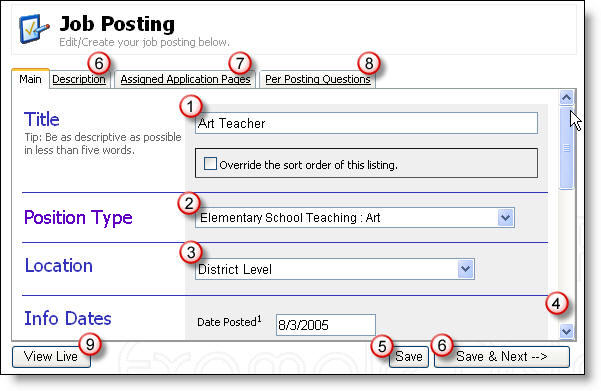
1) Enter a title. The title is what applicants will know this vacancy by.
2) The Type determines the Posting's Category and Position type. It is required. If you can not find an appropriate selection, you may need to go to Setup -> Edit Position List. The contents are drawn from it.
3) If supplied, the location is displayed to applicants. You can modify the contents of this list from Setup -> Edit Locations. More info...
4) Additional fields are not required but are displayed to applicants if supplied. Review the onscreen descriptions for more information.
5) Click Save to save changes to the current tab
6) Enter the description on the Description tab by clicking the tab or
clicking Save & Next. (You can spell check your description simply by
clicking on the Spell Check button
 .)
.)
Files may be attached to job postings to supplement the information placed within the description field by using the "Attach a file" link. Common uses for this file attachment functionality are to provide applicants with background information about your organization or a complete contract for reference. It is important that you do not only attach the postition description and leave the description text area blank. Doing so will prevent searches for posting information being successful.
Job posting attachments may also be hidden from applicants to store office-use-only documents.
7) Assign additional application pages, if needed More info...
8) Include questions for just this posting on the Per Posting Questions tab More info...
9) To see the posting as the applicant will see it, click View Live.
10) The "Applications Accepted?" option let's you decide if the applicants for a position should complete an online application or not; for example, an hourly or substitute position might not require an online application.
The default selection is "Yes" which allows the applicants for the position to apply online. If you select, "No" the posting will be listed on your vacancy board, but you will not receive any applications online. There will be no "Apply" button for the applicants to click within the posting. Importantly, you will need to indicate how to apply in the description tab.
More information:
* Show/Hide postings on the By Vacancy screen